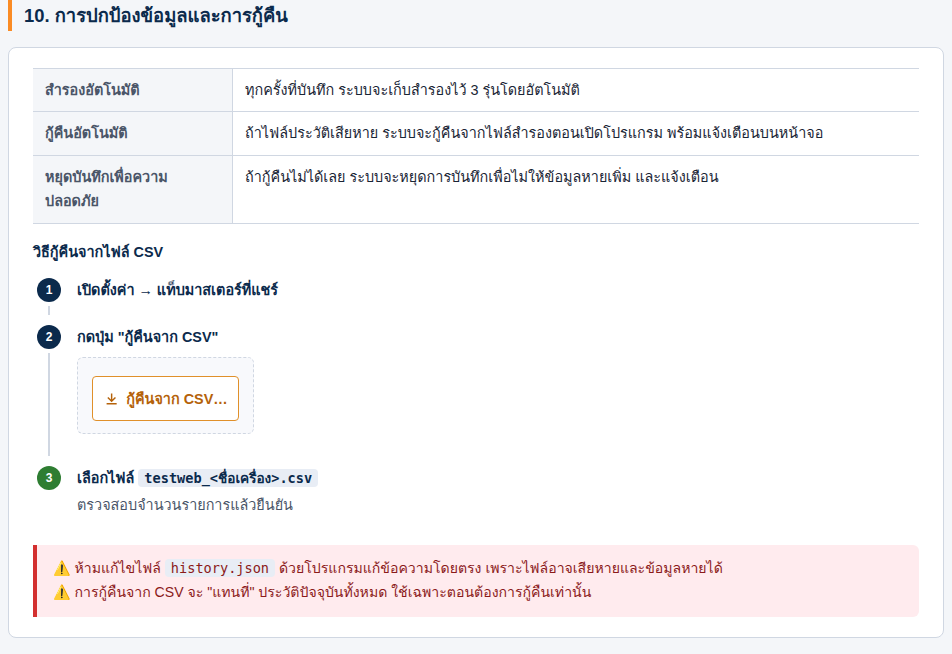
Inspection Label Printer
From a single identification number to a printed label in seconds
Background & Problem
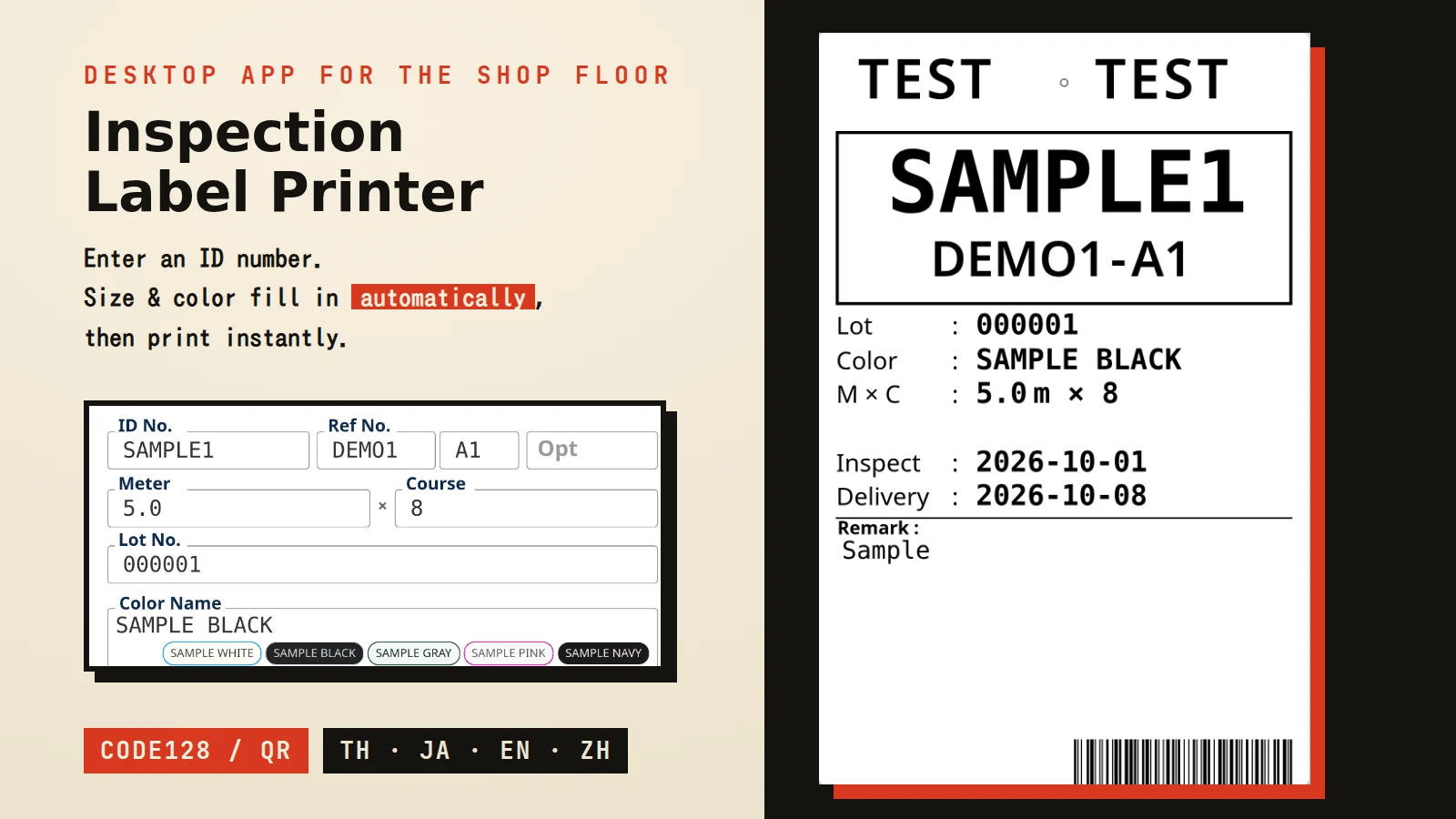
Creating and printing the labels attached to products after inspection was a mostly manual process that leaned on individual operators' experience. Size and color-code values had to be looked up per identification number from ledgers or an Access file and typed in by hand, which invited mistakes and duplicated work. The label also had to carry a barcode or QR code that a downstream system would scan, so print quality and code format needed to match real shop-floor conditions.
Key Features
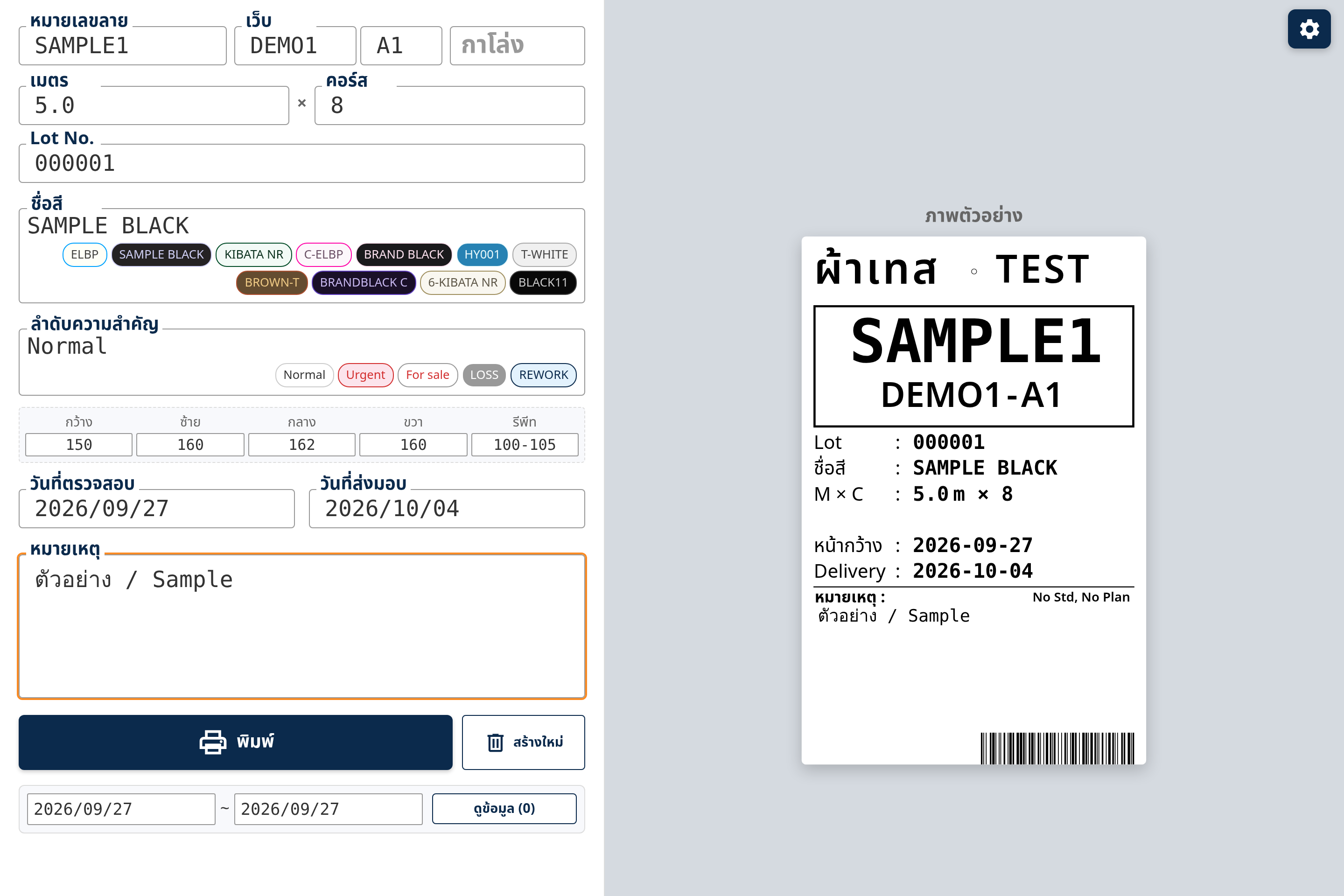
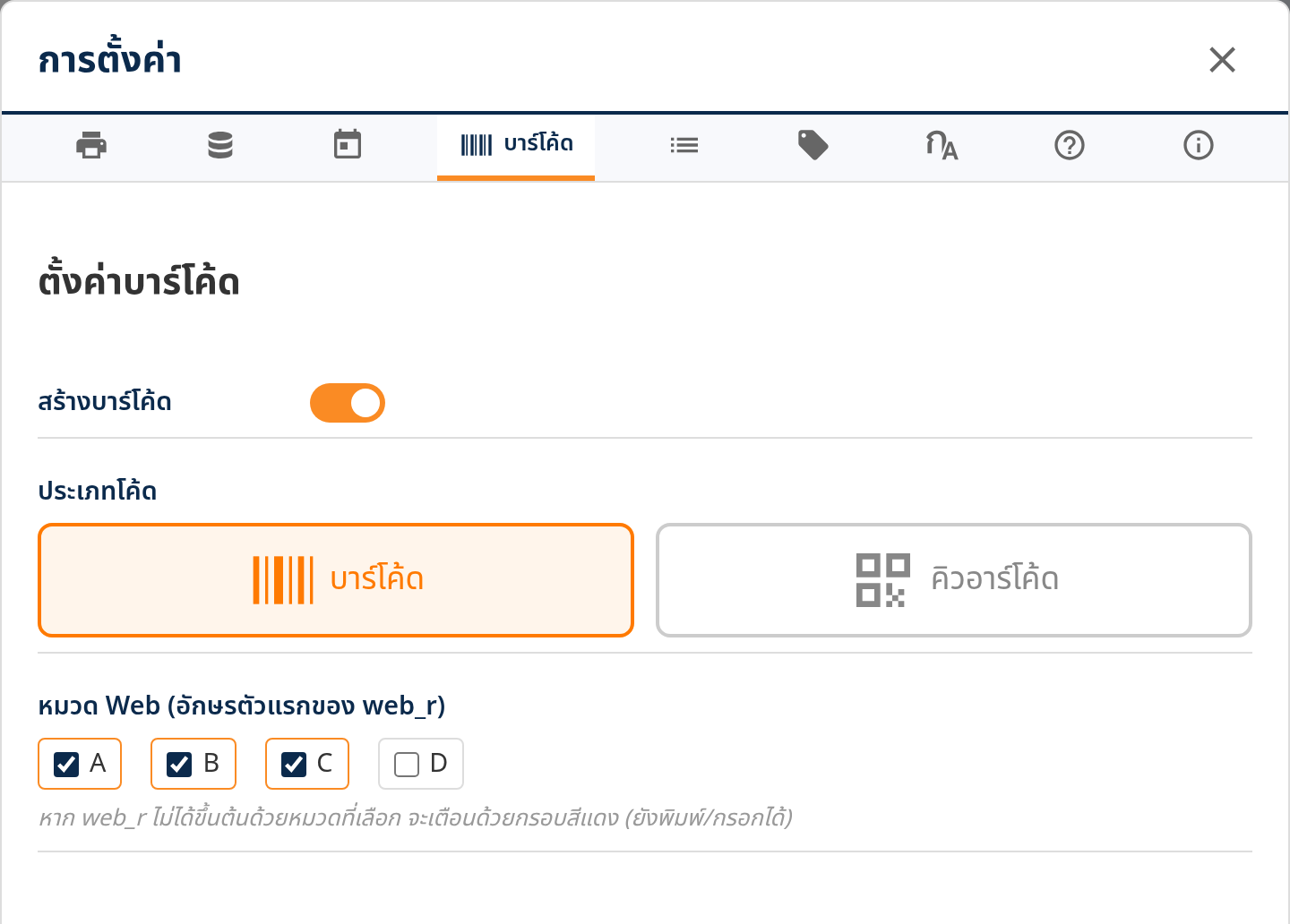
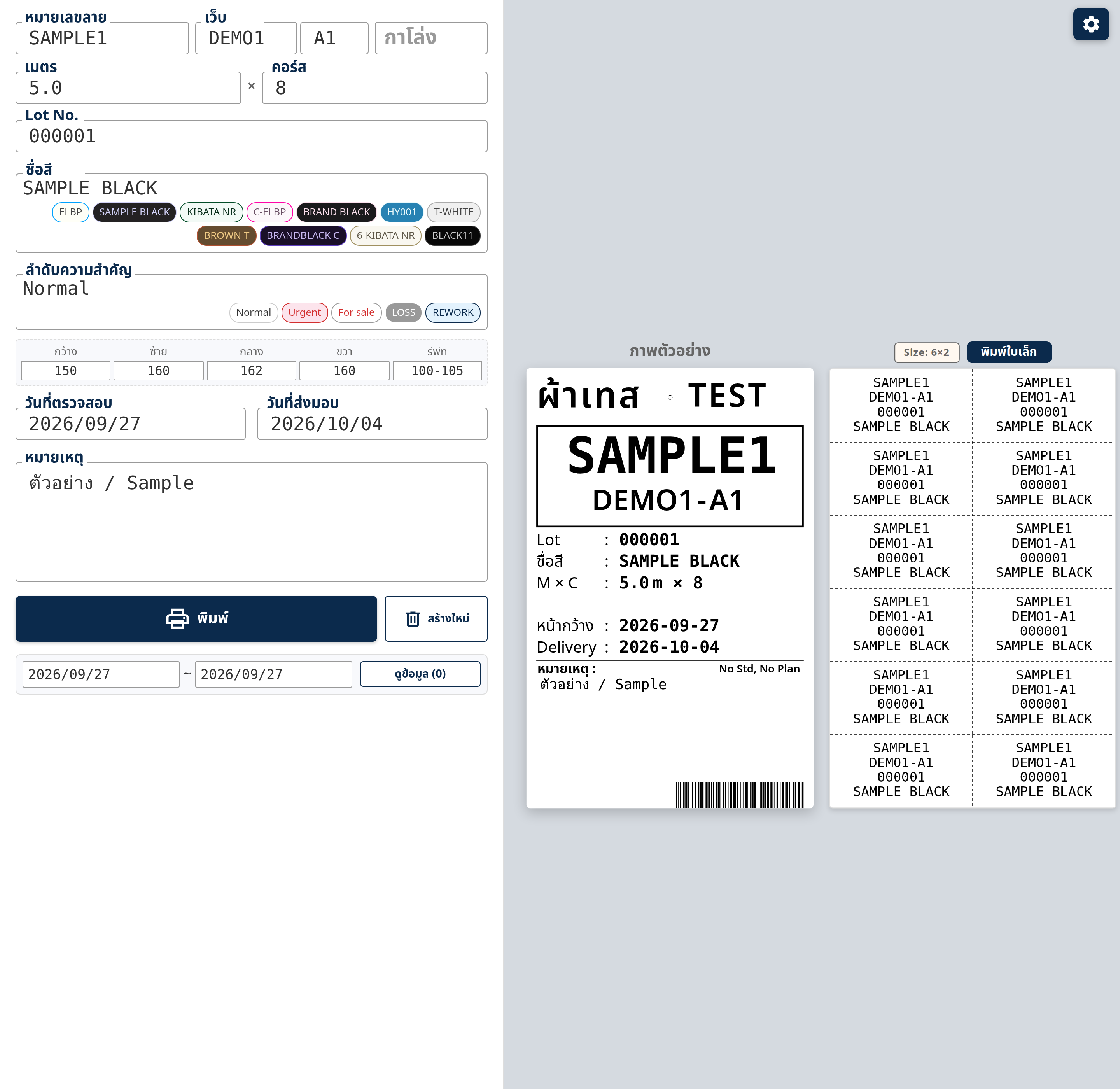
Entering just an identification number auto-fetches size and processing details (control number, color, quantity, remarks) from SQL Server. Color code lookup works from a typed color name, tolerant of spacing and case variations. A barcode (Code128) or QR code can be selected and embedded for a downstream scanning system. Print history is kept indefinitely with CSV export, plus automatic export to a shared folder for another system. It supports Thai, Japanese, English and Chinese.
Technical Approach & Architecture
Shop-floor PCs sit inside a closed internal network, so the app couldn't assume constant connectivity or an external cloud backend. Instead of a browser-based web app, it was built as a locally installed desktop app using Tauri (Rust). The UI is plain HTML/CSS/vanilla JS, reusing existing web know-how, while everything that can't be allowed to fail — direct printer commands, local file I/O, SQL Server queries — is concentrated in the Rust backend. The split keeps the frontend focused on display and validation, while file handling and printer control are validated and guarded on the strongly-typed Rust side.
Engineering Highlights
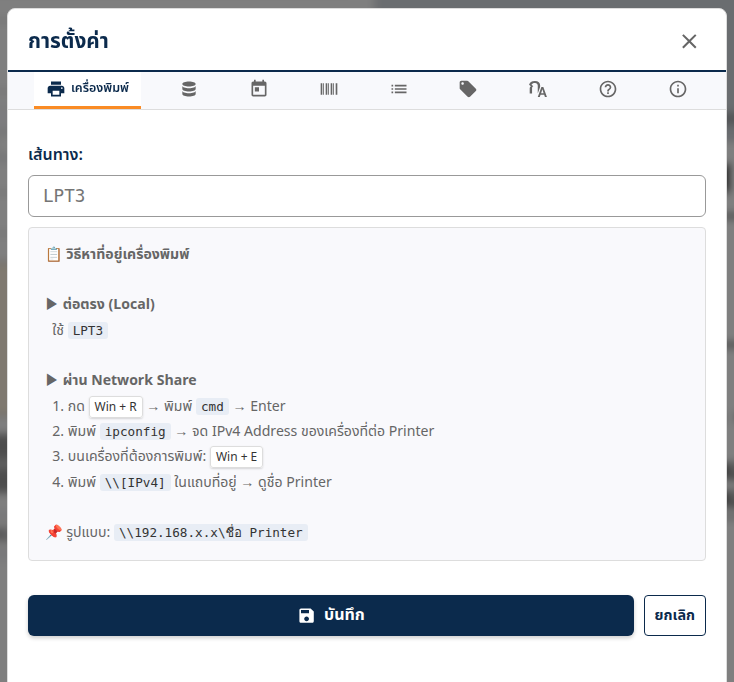
Color-code lookup originally shipped as a static config file, but re-distributing it every time a color was added or changed didn't scale, so it was switched to querying the database directly. Barcodes were first rendered by rasterizing the whole label and sending it as an image, but the shop floor reported barcodes that sometimes couldn't be scanned; the cause turned out to be thin bars getting lost during image binarization. The fix was to build the printer's own SBPL commands directly and send those instead, which stabilized print quality. Separately, a print-history file was once corrupted on one machine and its data lost — tracing it back revealed a design flaw where a failed read was silently treated as empty data and then overwritten. The fix added pre-save validation, a 3-generation automatic backup, quarantining (never deleting) corrupted files, self-healing recovery from backup, and a manual recovery path from the shared-folder CSV, so a similar incident no longer has to stop the line. A related issue where settings vanished after restart on some machines, traced to the browser's local storage being cleared, was resolved by mirroring settings into a config file as well.
Outcome & Impact
The app now runs daily across multiple PCs, keeping print history indefinitely while staying automatically in sync with another system through the shared folder. The backup and self-healing mechanisms built after the earlier data-loss incident mean a similar failure can now be recovered without stopping floor operations. A user manual and a technical spec sheet, styled to match the app itself, were written alongside development and continue to be updated as feedback comes in from the floor.